

Available Models
TextQL’s model catalog includes models across several providers:Anthropic (Claude)
* 1M token context window available in beta. Standard pricing applies up to 200K input tokens; tokens beyond 200K are billed at a higher rate. See Pricing for details.
† Standard pricing applies to prompts up to 100K input tokens. A prompt over 100K tokens bills every token in the request at 5× the standard rate. See Pricing for details.
OpenAI (GPT)
Google (Gemini)
Meta
DeepSeek (via Fireworks)
Moonshot (via Fireworks)
Zhipu / GLM (via Fireworks)
Qwen (via Fireworks)
For ACU pricing on each model, see the Pricing page.
Model Catalog
The Model Catalog tab is where administrators enable or disable models for the organization and set the organization-wide default.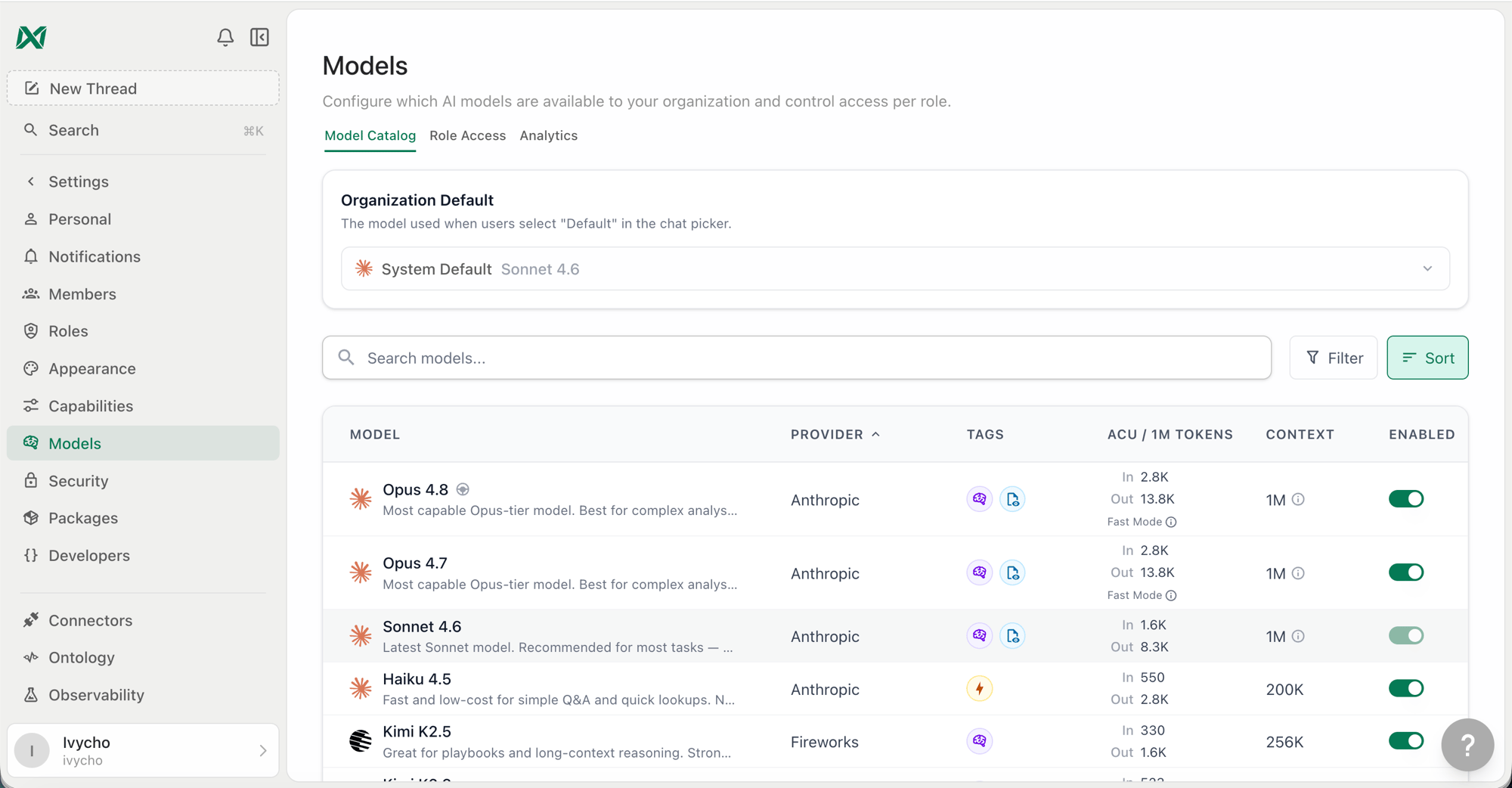
Model Catalog tab in Settings → Models
Enabling and Disabling Models
By default, all models in the catalog are available to your organization. You can disable any model to prevent it from appearing in the model picker for all users. A disabled model cannot be selected by any user regardless of their role settings. If a role has a disabled model set as its default, the system default takes over. Use Enable all models above the table to turn every model back on in one step.Automatically Enabling New Models
The Automatically enable new models switch above the catalog decides what happens when a model is added to the catalog later. When it is on, new models are enabled for the organization even if you have disabled others; only the models you turned off stay off. When it is off, the catalog is pinned to the models enabled today and new models start disabled until you turn them on. New organizations start with this switch on and every model enabled.Setting the Organization Default
The organization default is the model Ana uses when no specific model has been selected for a conversation. It appears as “Org Default” in role settings and is distinct from the System Default.- System Default: TextQL’s platform-level default. On TextQL’s hosted service it is currently Claude Sonnet 5.5 for Anthropic organizations and GPT-6.1 Sol for OpenAI organizations, and it updates automatically as the platform evolves. On a self-hosted deployment a new default takes effect only after a platform admin accepts it (see Model Deprecations); until then Anthropic organizations keep Claude Sonnet 5 and OpenAI organizations keep GPT-5.6 Sol. Setting
MODEL_DEPRECATIONS_ENABLEDoverrides acceptance:trueapplies every change without it, andfalseapplies none even when accepted. - Org Default: An explicit model your organization has pinned. Overrides the System Default for all roles that inherit from the org.
Role Access
The Role Access tab gives fine-grained control over which models each role can use, what their default is, and whether users in that role can switch models mid-conversation.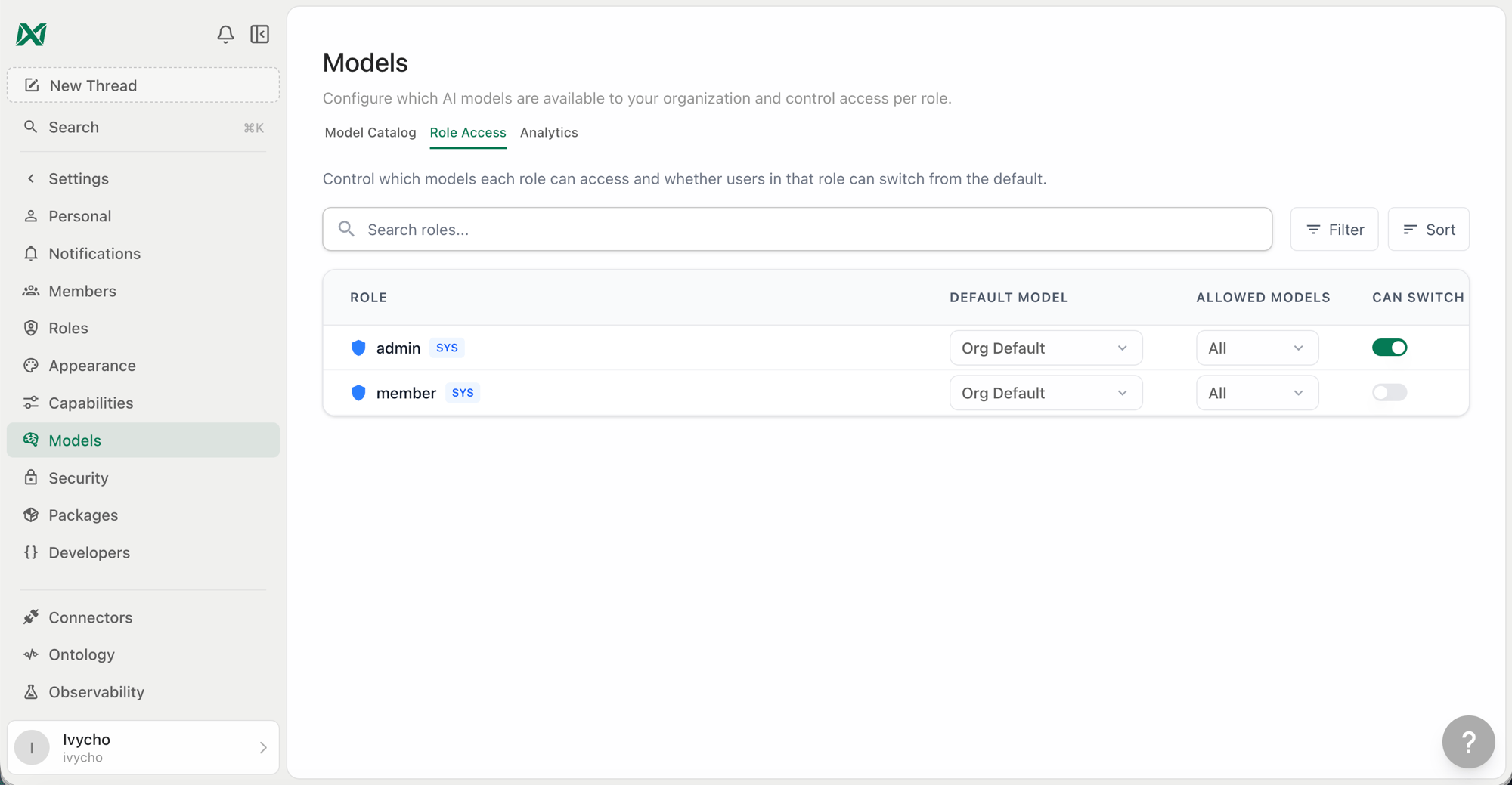
Role Access tab showing per-role model configuration
Default Model
The model Ana starts a new conversation with for users in this role. Options are:- Org Default — Inherits whatever the organization default is set to (recommended for most roles)
- System Default — Pins to TextQL’s platform default, auto-updating with the platform
- Specific model — Pins to an explicit model regardless of org or system defaults
Allowed Models
The subset of org-enabled models that users in this role can see in the model picker. Defaults to all enabled models. Restricting this is useful if you want certain roles to only access lower-cost or specific provider models. The allowed models list has Select all and Clear all controls. Clear all keeps the role’s default model, since a role always keeps access to its default. Automatically include new models controls models added later, whether they are new to the catalog or newly enabled for your organization. When it is on, those models are allowed for the role without editing its list; only the models you unchecked stay excluded. When it is off, the role keeps exactly the models checked today.Note: A role’s default model is always included in its allowed list. You cannot remove a model from the allowed list if it is set as that role’s default — change the role default first.When the organization has an explicit default model, every role that keeps Org Default can use it even if it is not checked in the role’s allowed list, so changing the org default reaches those roles without editing each list. If the organization follows the System Default instead, the role’s allowed list still applies and users start on the first allowed model when the platform default is not in it. When a user holds several roles, the most permissive role wins: the user can switch models if any role allows it, and can use any model that any of their roles allows. A role with all models allowed grants access to every enabled model regardless of the other roles’ restrictions.
Can Switch
Use Let every role switch models above the table to turn on switching for every role at once, then save. The role editor (Settings → Roles → Edit) has the same switch, and if model switching is turned off for the whole workspace it shows a Turn on button so you can fix both from one place. Controls whether users in this role see the model picker in the chat interface at all. When disabled, users in this role cannot change the model — they always use the role’s default.Configuring via API
These three settings are fields on the role, set from this tab or programmatically with the role update API (RBACService/UpdateRole). They are not RBAC permissions and cannot be granted through a role’s permission list — allow_model_switching is a UI label, not a permission string.
default_model_id and allowed_model_ids take LlmModel enum numbers. An empty allowed_model_ids is treated as “no change”; send clear_allowed_model_ids: true to reset it back to all models.
Model Picker (User-Facing)
When model switching is enabled for a role, users see a model picker in the top right of the chat interface. It shows:- Default — The system/org/role default, auto-updating with the platform
- All models the role is allowed to access, grouped with provider icons
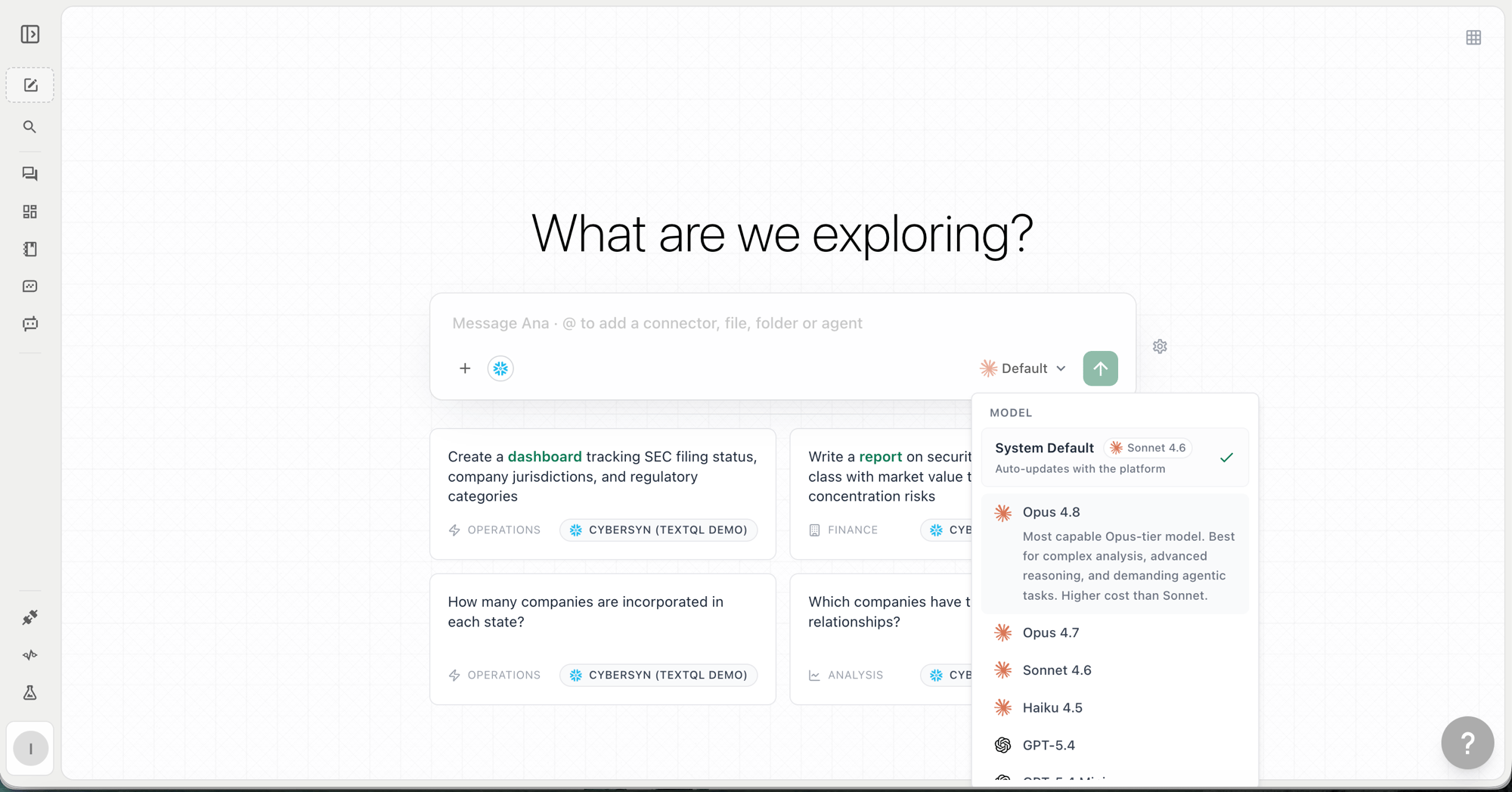
Model picker in the chat interface
Thinking Levels
For models that support it, members choose how long the model thinks before answering. The level is set from the gauge button next to the model picker in the composer, or from the Thinking slider at the bottom of the model picker. It can be changed mid-thread and applies from the next message.
Each model shows only the levels it accepts. A thread with no level chosen sends nothing, so the model runs at its provider’s own default, shown in the last column.
Other models don’t show the selector. Claude levels apply on the native Anthropic API, Amazon Bedrock, and Google Vertex. At every level but Off, Claude thinks with a visible summary. GPT levels apply on the native OpenAI API; Azure and other OpenAI-compatible gateways run GPT models at their default.
Off is offered only where the provider can stop the model thinking: Claude turns thinking off (Sonnet 5.5 keeps only its short notes between tool calls), GPT and the Fireworks models run with reasoning effort
none, and Gemini 3.5 Flash runs at its minimal level. A model without Off, such as Claude Opus 5.5 or GLM 5.3, runs at Low instead.
When a member picks a level, it becomes their starting level for new threads on that model, in that browser. Admins set the defaults for everyone else in two places:
- Org default: Settings > Capabilities > Thinking Levels > Default thinking level applies to every model.
- Per-model default: the Default thinking column under Settings > Models > Model Catalog overrides the org default for one model. Choose Use org default to remove the override.
Agents and playbooks
An agent runs at its own thinking level, set in the agent editor under Advanced settings, next to its model. The editor shows only the levels the agent’s model offers. An agent with no level runs at the provider’s default. Org and per-model defaults never apply to agents, so changing them never changes what an agent costs to run. The agent’s level applies to every run, whether it was scheduled, run manually, mentioned in Slack or Teams, chatted with, or called as a subagent. An agent that follows the workspace default model is held to that model’s levels when it runs. Agents defined in config files set the level withthinking_level next to model; a level the model doesn’t offer is rejected when the file is saved.
Playbooks always run at the provider’s default.
When a model is retired, each agent on it that isn’t defined in a config file moves to the successor model, and its level drops to the nearest level the successor offers, for example Max on a retired model becomes Extra high on GPT-6 Astra. A per-model default for the retired model carries to the successor only when the successor has no default of its own. The retirement email lists each agent with its level before and after and says whether the per-model default carried over; the in-app notification gives the number of agents moved and the per-model default change. An agent defined in a config file is updated by a change to its file, which rewrites model and thinking_level together.
Cost. Pricing per token doesn’t change. Thinking tokens bill as output tokens, so higher levels cost more per message.
Admins can turn the selector off for the whole organization with the Thinking Levels capability. When it’s off, every thread and every agent run uses the model’s default level.
Model Deprecations
When a model is scheduled for deprecation, a warning appears in the model picker next to that model’s name, showing the deprecation date. Administrators should update any role defaults that point to a deprecating model before the deprecation date to avoid disruption. After deprecation, requests to a deprecated model are automatically routed to the nearest equivalent current model. On a self-hosted deployment (single-tenant or VPC), a model deprecation does nothing until a platform admin accepts it under Settings > Platform admin > Model management. That page lists the deprecations that ship with your release, shows whether your model endpoint serves each model and its successor and how much of your workspace uses it, and lets you accept a deprecation as shipped, choose a different successor your endpoint serves, move its date, or skip it. Test successor makes one real call through your endpoint before you accept. An accepted deprecation sends the same warnings and emails and moves playbooks, defaults and threads on its date. Settingcompute.modelDeprecationsEnabled in your Helm values turns every deprecation on or off at once instead.
The same page decides your deployment’s system defaults: the model each tier uses when nothing more specific is set, such as a new thread with no model picked or a background summary. When a release moves a default, for example from Claude Sonnet 5 to Claude Sonnet 5.5, a self-hosted deployment keeps its current default until a platform admin accepts the change, either as shipped or with another model from the same provider that your endpoint serves. Test model makes one real call before you accept. A deprecation of a model that is still a tier’s default can only be accepted together with the change that moves the tier off it. SYSTEM_DEFAULT_MODEL still overrides the default tier.